How to get more out of ChatGPT
Most people type a question and take whatever comes back. A few habits change that: a prompt with four parts, the settings you only touch once, knowing when to hand a job to ChatGPT Work or your dot, and plugins that bring in your own tools. Plus the new ChatGPT for Sales, with the prompts OpenAI uses for call prep and follow-ups.
Goal, context, output, boundaries
OpenAI’s own advice: a short prompt is often enough, but for anything that matters, cover the parts that change the result. You don’t need to fill in all of them.
- 01Say the result, not the stepsStart with what you want and who it’s for. Only spell out a process when the process itself matters. Otherwise leave ChatGPT room to search, compare and pick its own approach.
- 02Give it only the context that changes the answerAttach the files that matter and say what to take from each. Point at a screenshot’s area instead of hoping it notices. Ask for web search and sources when the answer depends on what’s current.
- 03Add one or two boundariesThe few lines that stop real problems: keep these numbers unchanged, flag gaps instead of guessing, draft it but don’t send it.
- 04Ask for a final checkFor anything important, end with a check it has to run before it’s done, like “every action item has an owner and a due date”. Then read it yourself.
- 05Fix it with a follow-up, not a restartThe first prompt doesn’t need to be perfect. Ask for the one change you want (“move the recommendation above the background”) and keep the rest.
The template:
Goal: [what you want ChatGPT to make or decide]
Context: [the files, links or @plugins it should use, and what to take from each]
Output: [who it's for, the format and the length]
Boundaries: [what must not change, and what to check with me first]

Before you finish, check [one thing that must be true] and flag anything you couldn't verify.
Filled in (OpenAI’s example):
Prepare a one-page project status update for Monday's leadership meeting. Use the latest project plan in Drive and relevant decisions and updates from the project's Slack channel.

Lead with the decisions leadership needs to make and the next steps. Summarize progress, risks, owners, and due dates. Keep approved dates and budget figures unchanged. Flag any conflicting or missing information, and don't send or publish anything.

Before you finish, check that every next step has an owner and due date.
Two boundaries worth keeping on hand:
Use only the supplied sources. Flag missing information instead of guessing.
Prepare the message as a draft. Don't send it.So you stop repeating yourself
- 01Custom instructions for what never changesSettings › Personalization. Your role, how you like answers, what to avoid. They apply to every chat, so you stop retyping them. Details that only matter today go in the prompt.
- 02Pick a base style and toneSettings › Personalization › Base style and tone (on the web). It changes how ChatGPT sounds, not what it can do.
- 03Turn on writing style in WorkConnect your email, messaging or document apps and select Use writing style, and drafts in ChatGPT Work start to sound like you. Connecting the apps alone doesn’t switch it on.
- 04Let memories carry contextMemories bring preferences, recurring workflows and project conventions from earlier chats into new ones. Anything that must always apply belongs in custom instructions or a project instead.
- 05Use a project for related chatsWhen a set of chats should share the same files, sources or a local folder, put them in one project.
Pick the right place for the job
- 01Chat: answers and quick draftsQuestions, explanations, ideas, short rewrites, everyday decisions.
- 02ChatGPT Work: a task with a finished resultA brief, a deck, a spreadsheet, an analysis or a recurring update, built from your files and plugins, ready for you to review. Use it when the job has several sources or steps, or would take you real time by hand.
- 03Your dot: an ongoing responsibilityAn always-on agent with its own cloud computer and browser. It keeps track of something between conversations, works out what’s next as things change, and comes back with results or decisions that need you. You can message or call it in ChatGPT, or reach it in Slack. Rolling out to Pro and Business Premium.
Do the work once, then reuse it
- 01@ a plugin to point it at a toolPlugins connect ChatGPT to Gmail, Google Drive, Slack, your CRM and more. Install them under Customize › Plugins, then type @ and the name in your prompt to make it use that one.
- 02Turn a task you repeat into a skillA skill is a saved playbook: the steps, the format, a template or a good example. Start with @skill-creator, describe the task, test it on a real request, then refine. A weekly update or a meeting follow-up is a good first one.
- 03Or just show it onceRecord & Replay turns a workflow you demonstrate into a reusable skill.
- 04Schedule it once it worksGet the prompt right in a normal chat first. When the output is reliable, schedule the task inside that chat. Ask it to send you a draft before it shares anything.
A scheduled task (OpenAI’s example):
Every Monday morning, review new updates from @Slack and @Google Drive for [project]. Refresh the meeting agenda with decisions, blockers, owners, and open questions. Send me a draft before sharing it.Call prep, follow-ups and CRM updates you approve
OpenAI launched ChatGPT for Sales on 17 November 2026: a Sales plugin with workflows for sellers, plus partner plugins for Salesforce, HubSpot, Gmail, Gong, Clay, ZoomInfo, Outreach, Docusign and more. It works from your CRM, calls, email and files in one conversation.
- 01Prep every call from what you already haveAsk for a briefing that pulls account history, previous calls and the buyer’s priorities from your CRM, calendar and notes. OpenAI’s example: “Prep me for my customer call using @Salesforce, @Calendar, and recent notes.”
- 02Draft the follow-up, review the CRM updateAfter a call it drafts the follow-up email, captures the agreed next steps and prepares the changes to the customer record. You refine the message and review the proposed changes before anything is saved.
- 03Find the accounts worth your weekRank accounts from your CRM plus prospecting tools like ZoomInfo and Clay, ask why each one fits, then write the outreach with a specific reason to reach out, in the same conversation.
- 04Catch deals before they slipAsk what’s holding a deal up, using CRM history and customer conversations: “Review my pipeline and flag deals at risk of slipping this quarter.”
- 05Hand the routine to your dotYour dot can use the same plugins to prepare meeting briefs, track deal updates and bring you changes and proposed next steps to review.
OpenAI’s own prompts, by job. Swap in your account:
@Salesforce Pull CRM context for [account] and create a meeting brief with opportunity status, key contacts, recent activity, risks, and recommended questions.@HubSpot For my next customer call, pull contact/company history plus recent emails and notes, then suggest a short agenda and smart questions.@Salesforce Turn these customer call notes into a concise follow-up email and a CRM update with next steps, risks, and owner commitments.@Gmail Review recent emails and identify the five conversations needing attention today. Explain urgency, upcoming deadlines, and customer or stakeholder risks, with a link to each thread.@Salesforce Review my open opportunities closing this quarter. Group by stage, flag stalled deals, and suggest next actions for each account owner.@HubSpot Analyze deals lost last quarter and summarize the top loss reasons by segment, including patterns in notes or missing fields.@Sales Build an account plan for [customer] with goals, stakeholders, open opportunities, risks, proof points, and next-best actions.How to turn it on. Install the Sales plugin and the plugins for your tools, then connect your accounts when prompted. On ChatGPT Business and Enterprise, an admin makes them available in the Admin Console under Plugins. Which plugins you get depends on your plan, region and workspace settings.
Where this comes from. Everything here is from OpenAI’s own pages, read on 19 November 2026: the ChatGPT Learn docs (prompting, personalization, skills and plugins, ChatGPT Work, dots), the ChatGPT for Sales launch and the plugin pages. The quoted prompts are OpenAI’s examples. Features and availability change, so check the source if something looks different in your account.
More field guides
All guides → ChatGPT · GuideHow to build and submit your own ChatGPT plugin extension →The server, the ZIP and the review checklist
 Jev · GuideHow to set up Jev and make your first API call →Step by step, about 5 minutes
 Jev · GuideHow to automate SEO internal linking with Jev →The script, the prompt and the threshold rule
 Jev · GuideHow to find sales prospects ready to buy with Jev →Two scripts and the three filtering questions
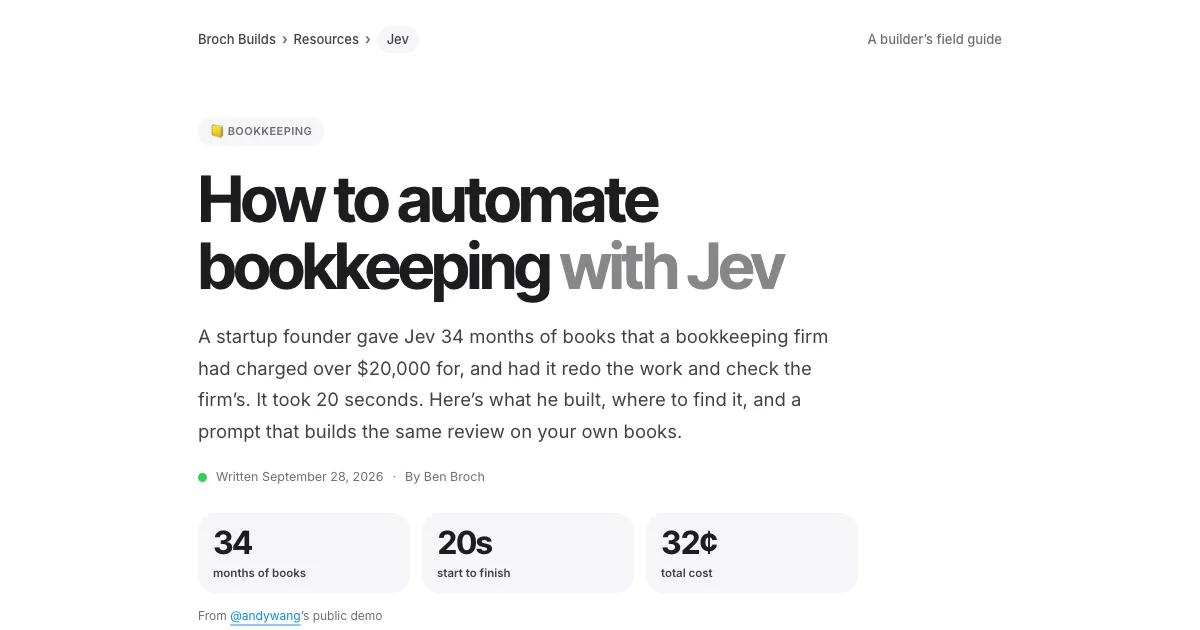 Jev · GuideHow to automate bookkeeping with Jev →Categorize every transaction, flag what needs a human
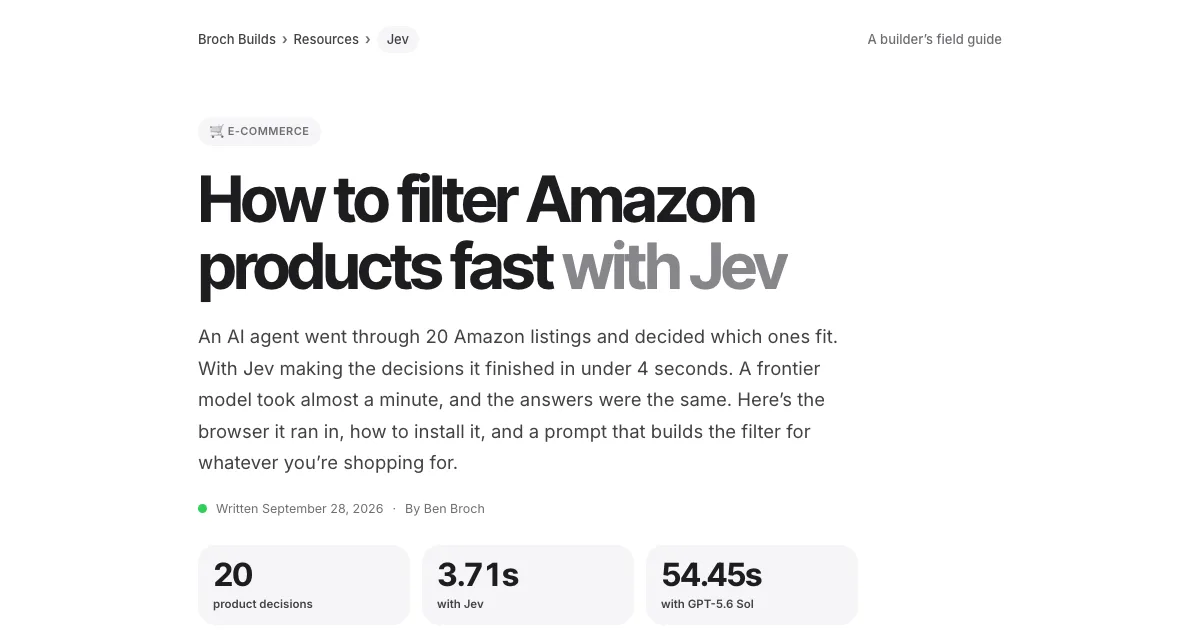 Jev · GuideHow to filter Amazon products fast with Jev →The agent browser, the rules as questions, the race
 Jev · GuideHow to search Zillow by what the filters can’t see with Jev →699 listings judged in under 18 seconds
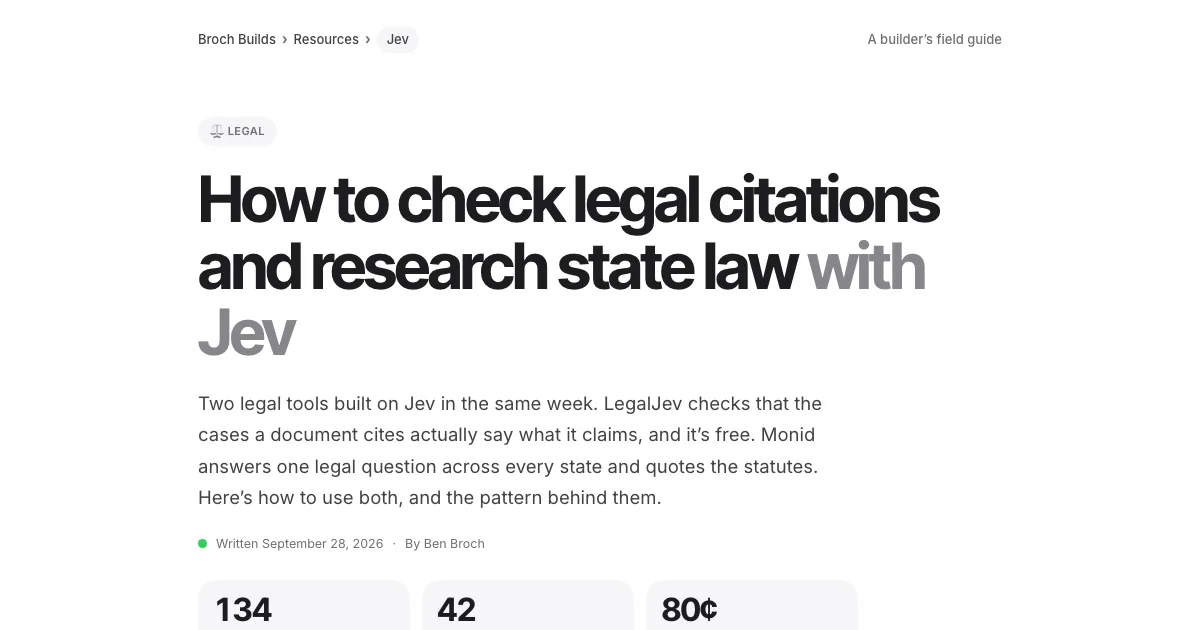 Jev · GuideHow to check legal citations and research state law with Jev →LegalJev (free) and Monid, side by side
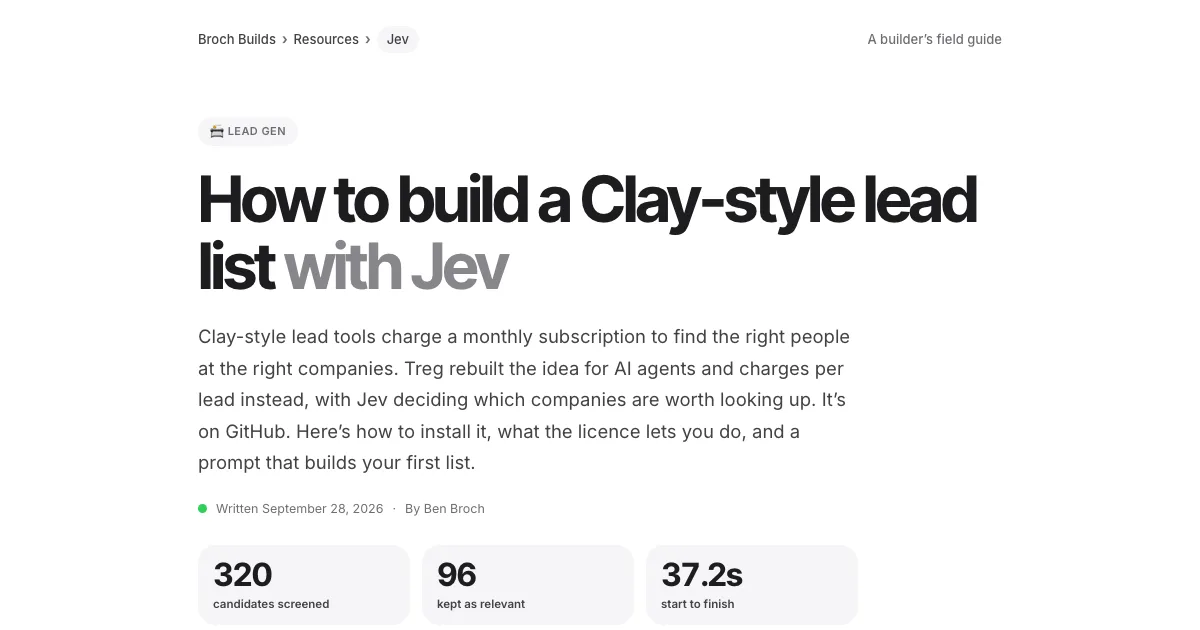 Jev · GuideHow to build a Clay-style lead list with Jev →Treg on GitHub: judge first, pay second
 Jev · GuideHow to find buyers on LinkedIn with Jev →290 posts scored in 3.8s, 23 buyers
 Jev · GuideHow to sort your inbox with Jev →500 emails in 7 seconds for a cent
 Jev · GuideHow to find viral TikToks with Jev →780 videos, 137 outliers, sorted by niche
 Higgsfield · GuideHow to swap the people in any video with Higgsfield Genjutsu →The clip, the photos, the prompt and the cost
 Claude Code · GuideHow to make motion graphics with Claude Code →Six looping effects, one prompt each
 Claude Code · GuideHow to security-check your vibe-coded app with Claude Code →One prompt, 20 checks, a fix list
 Claude Code · GuideHow to make Claude Code attack your own app before you launch →One prompt, two test accounts, every hole it got through
 GrokBot · GuideWays to use GrokBot →The setup, ten jobs from the reels and 100+ prompts
 Muse · GuideWays to use Meta Muse →Five builds with prompts, plus 100+ more
 Claude Code · GuideThe Claude Code handbook →How the Claude Code team makes Claude prove its work, and more plays to copy
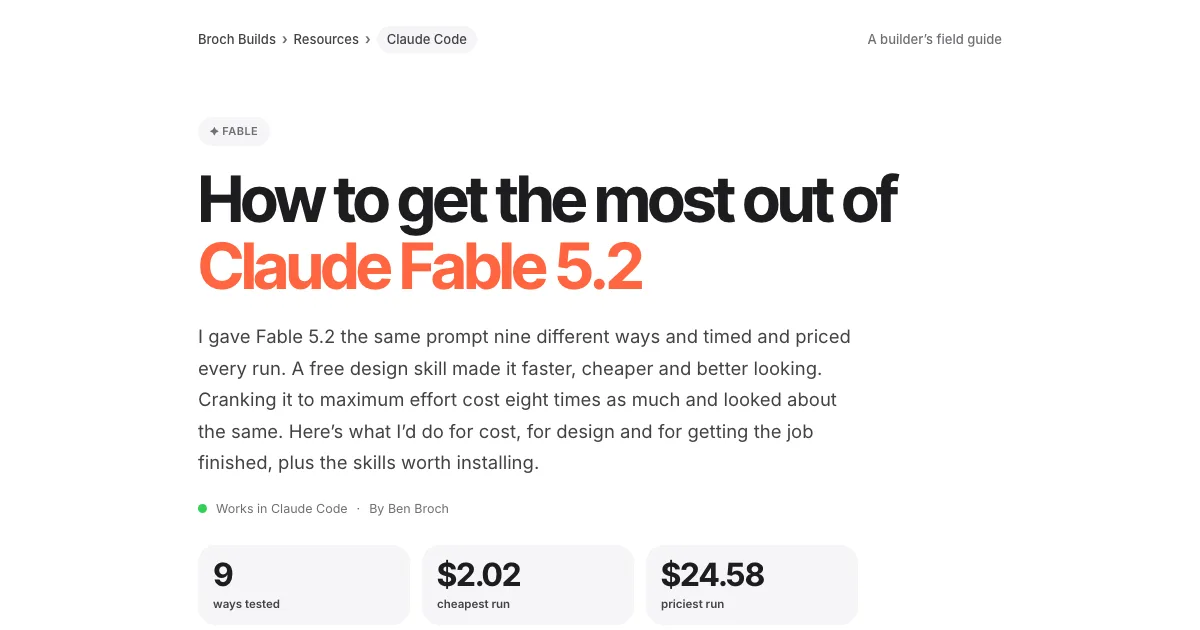 Claude Code · GuideHow to get the most out of Claude Fable 5.2 →Cost, design, finishing the job, and five skills to install
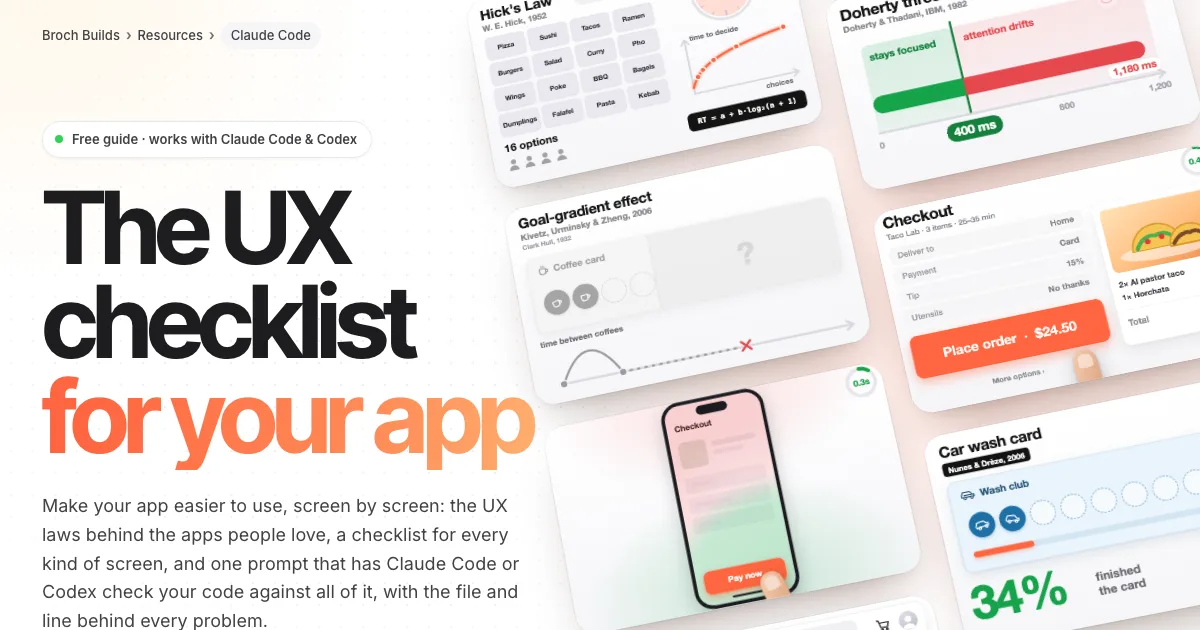 Claude Code · GuideThe UX checklist: make your app easier to use →The UX laws, a checklist per screen and one audit prompt
 Jev · Directory200+ Jev demos, repos and docs by team →Everything worth watching or running